Published: October 20, 2026 · 6 min read
Kubernetes Pod Explained — kubectl run and YAML Manifest
We have a cluster. Now we put something on it.
The thing you put on a cluster is a Pod. This class is all about Pods.
Here is the whole class in short:
- A Pod is the smallest thing Kubernetes runs.
- Every container in Kubernetes is created inside a Pod.
- A Pod always runs inside a node.
- A Pod is a group of one or more containers running together.
- One node can hold many Pods.
- Every Pod has its own IP address.
- You can create a Pod in two ways: a command, or a YAML file.
- A YAML manifest has four parts: apiVersion, kind, metadata, spec.
- A Pod is not reachable from outside the cluster. A Service fixes that.
What Is a Pod?
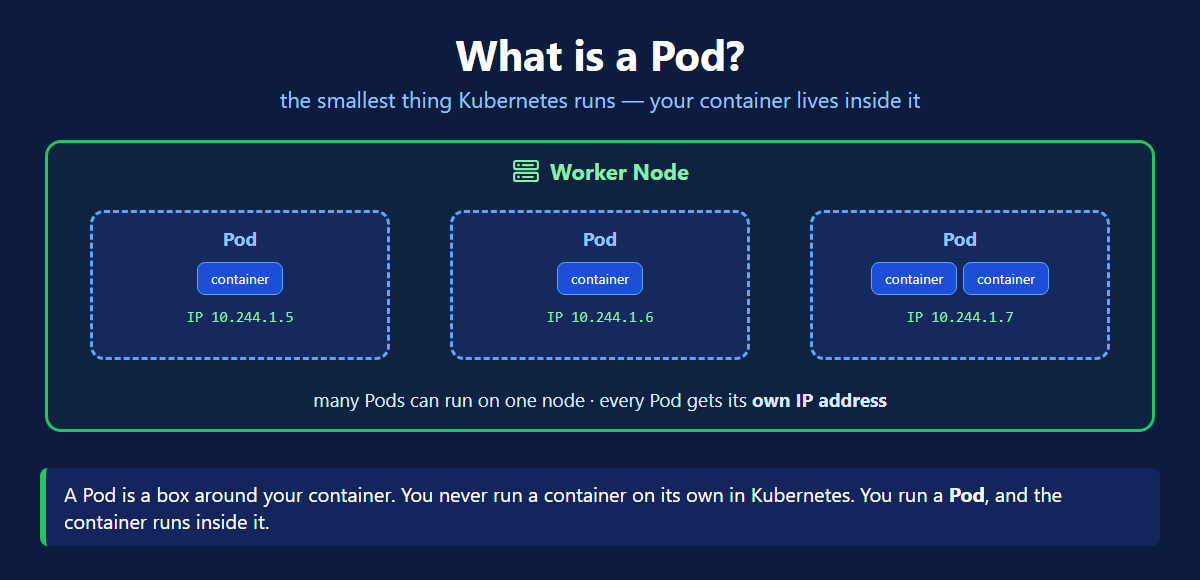
A Pod is a box around your container.
In Docker you ran a container directly. In Kubernetes you never do that. You create a Pod, and your container runs inside it.
A few simple facts:
- A Pod runs on a node. It cannot exist without one.
- A Pod is the running process of your app.
- A Pod can hold one or more containers. Most hold one.
- One node can run many Pods at the same time.
- Every Pod gets its own IP address inside the cluster.
When would a Pod hold two containers? Only when they must always live together on the same node. They share the Pod IP and talk on localhost. Most of the time you want one container per Pod.
Two Ways to Create a Pod
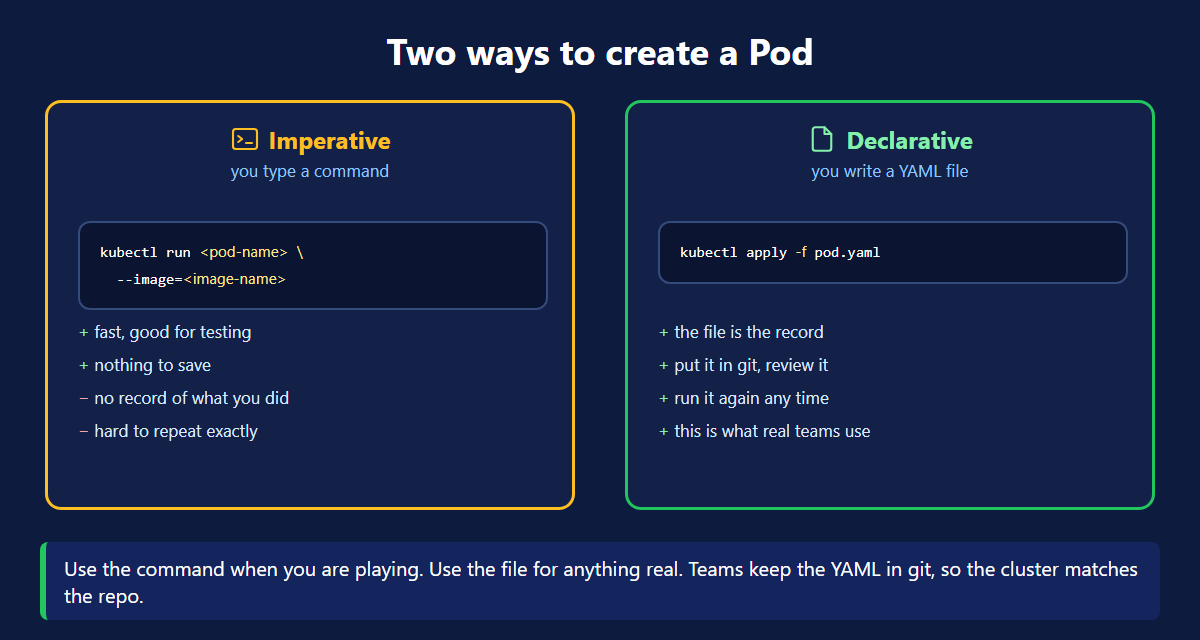
1. Imperative — a command
One line and the Pod is running. Good for a quick test. The problem is that nothing is written down. Tomorrow you will not remember the exact command.
2. Declarative — a YAML file
You describe the Pod in a file, and tell Kubernetes to apply it. This file is called a manifest.
The file is the record. Keep it in git. Anyone can read it and run it again.
This is how real teams work.
The Four Parts of a Manifest
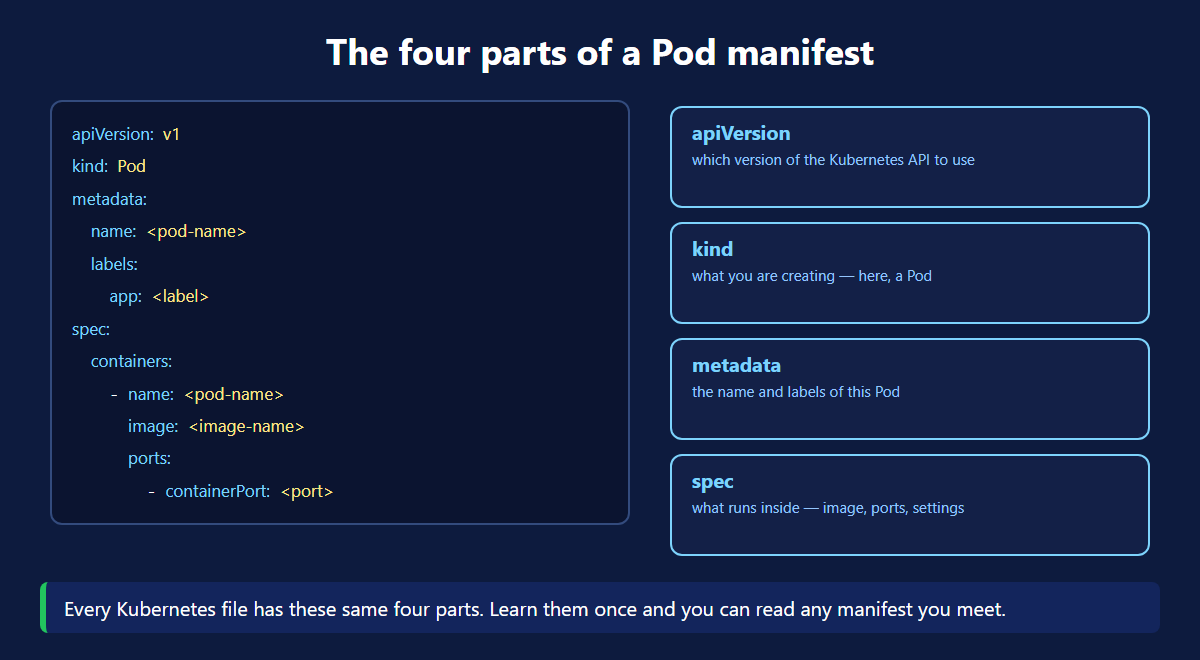
Every Kubernetes YAML file has the same four parts.
| Part | What it means |
|---|---|
| apiVersion | which version of the Kubernetes API to use |
| kind | what you are creating — here, a Pod |
| metadata | the name and labels of this Pod |
| spec | what runs inside — image, ports, settings |
Learn these four once. Every manifest you ever meet uses them.
Checking Your Pod
READY 1/1 and STATUS Running means your Pod is fine.
Add -o wide to also see the Pod IP and which node it landed on.
When Something Goes Wrong
Three commands, three questions:
- describe — what does Kubernetes think happened? Read the events at the bottom first.
- logs — what did my app print?
- exec — let me go in and look myself.
In kubectl exec -it hotel-app -- /bin/sh the two dashes matter. They tell kubectl where its own options stop and your command starts. Leave them out and the command fails.
Deleting a Pod
Pods Are Short Lived
This is the part beginners miss. A Pod is not permanent.
Pods are thrown away and recreated all the time:
- the node they run on fails
- you deploy a new version of your app
- Kubernetes moves them to balance the cluster
- you scale down, then scale back up
Every time a Pod is recreated it is a brand new Pod, with a brand new IP address. The old one never comes back.
So you can never write a Pod IP into your code. It will be wrong tomorrow.
Your Pod Is Still Private
You have a Pod running. You cannot open it in a browser yet.
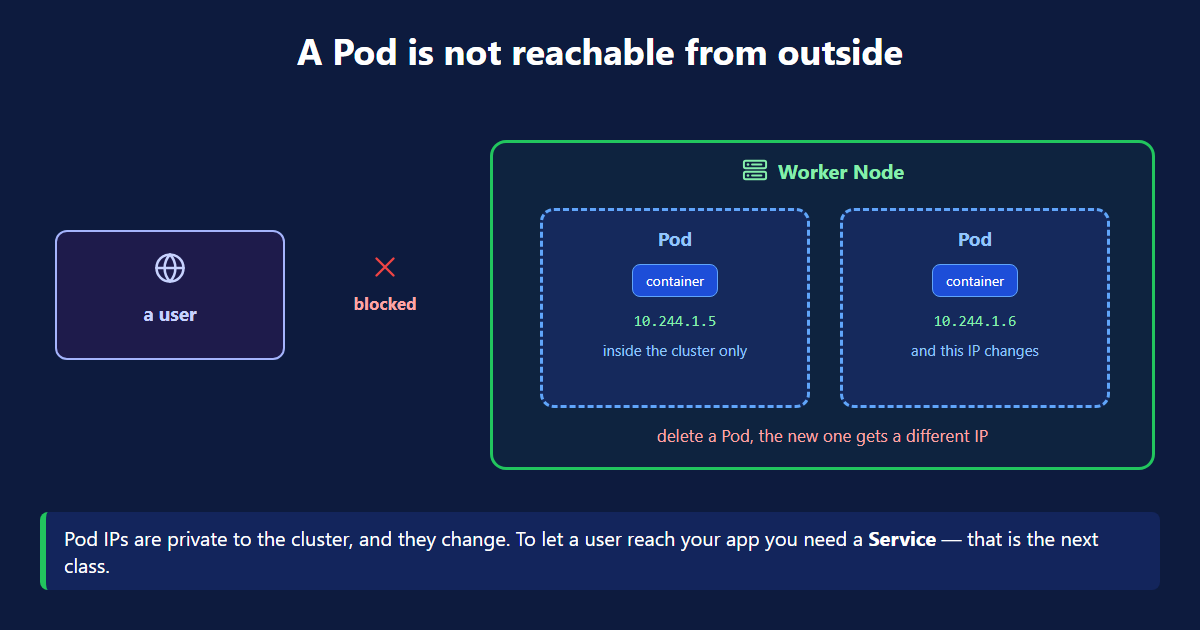
Two reasons:
- A Pod IP is private to the cluster. Nothing outside can reach it.
- The IP changes when the Pod is recreated. You cannot depend on it.
The answer is a Service. A Service puts a stable address in front of your Pods, and can open them to the outside world. That is the next class.
Kubernetes Pod Commands Quick Reference
| Command | What it does |
|---|---|
kubectl run <name> --image=<image> | create a Pod with one command |
kubectl apply -f pod.yaml | create or update from a file |
kubectl get pods | list your Pods |
kubectl get pods -o wide | same list, plus IP and node |
kubectl describe pod <name> | full details and events |
kubectl logs <name> | what the app printed |
kubectl exec -it <name> -- /bin/sh | open a shell inside |
kubectl delete pod <name> | delete the Pod |
What's Next
A Pod is the smallest thing Kubernetes runs, and your container always lives inside one. You can make a Pod with a command or a file, and the file is the better habit. The official Pod documentation (opens in a new tab) and the kubectl reference (opens in a new tab) go deeper. Next we add a Service, so people can actually reach your app.
← Back to Kubernetes Cluster Setup
Continue to Kubernetes Service →
Frequently Asked Questions
What is a Pod in Kubernetes?
A Pod is the smallest thing Kubernetes runs. It is a box around your container. In Kubernetes you never run a container on its own. You create a Pod, and the container runs inside it. A Pod always runs on a node, and a node can hold many Pods. Every Pod gets its own IP address inside the cluster.
Can a Pod have more than one container?
Yes. A Pod is a group of one or more containers. Most Pods have just one. You put two in the same Pod only when they must always run together on the same node. They share the Pod IP address and can talk to each other on localhost. A common example is an app container with a small helper container beside it.
What are the two ways to create a Pod?
The imperative way and the declarative way. Imperative means you type a command: kubectl run hotel-app --image=your-image. It is fast and good for testing, but nothing is saved. Declarative means you write a YAML file and run kubectl apply -f pod.yaml. The file is a record you can keep in git, review and run again. Real teams use the declarative way.
What are the four parts of a Kubernetes manifest?
Every Kubernetes YAML file has the same four parts. apiVersion says which version of the Kubernetes API to use. kind says what you are creating, for example a Pod. metadata holds the name and the labels. spec says what runs inside, such as the image and the ports. Learn these four once and you can read any manifest.
How do I check if my Pod is running?
Run kubectl get pods. You get the name, the ready count, the status and the age. Status Running with 1/1 ready means it is fine. Add -o wide to also see the Pod IP and the node it landed on. If the status is not Running, use kubectl describe pod and read the events list at the bottom. That is where the real reason usually is.
How do I get inside a running Pod?
Use kubectl exec -it pod-name -- /bin/sh. The -it flags give you an interactive terminal. The two dashes separate the kubectl options from your command. Use /bin/bash instead if the image has bash. This is the same idea as docker exec, just for a Pod instead of a container.
What does CrashLoopBackOff mean?
It means your container starts, crashes, and Kubernetes starts it again, over and over. The problem is inside your app, not in Kubernetes. Run kubectl logs on the Pod and read what it printed just before it died. A missing environment variable or a bad command in the image are the usual causes. Do not confuse it with ImagePullBackOff, which means Kubernetes could not download the image at all.
Are Kubernetes Pods permanent?
No. Pods are short lived by design. Kubernetes throws them away and creates new ones when a node fails, when you deploy a new version, when it rebalances the cluster, or when you scale down and up again. Every new Pod gets a brand new IP address, and the old one never comes back. This is why you never put a Pod IP in your code, and why a Service exists.
Why can I not open my Pod from a browser?
A Pod IP is private to the cluster. Nothing outside the cluster can reach it. The IP also changes when the Pod is recreated, so you cannot rely on it. To let a user reach your app you create a Service. A Service gives a stable address in front of your Pods and can expose them outside the cluster.