Published: October 14, 2026 · 12 min read
Docker Swarm Tutorial — Manager and Worker Nodes on AWS
Every lesson so far has lived on one machine. That machine is also the single thing standing between your app and an outage. This Docker Swarm tutorial fixes that: we take three EC2 instances, join them into one cluster, and let Docker decide where containers run — so a dead server stops being an emergency. You'll learn what a cluster actually is, the difference between a manager node and a worker node, the single AWS security group rule Swarm needs, and the init → token → join flow that ties the machines together.
In this guide, you will:
- Understand what a cluster is and why one server is a risk
- Learn the two roles — manager (master) and worker — and what each is allowed to do
- Launch three EC2 instances with a simple two-security-group setup
- Open the one port Swarm needs (2377) on the manager, sourced from the worker group
- Run
docker swarm init --advertise-addrand get the join token - Join both workers, confirm with
docker node ls, then deploy an app withdocker service
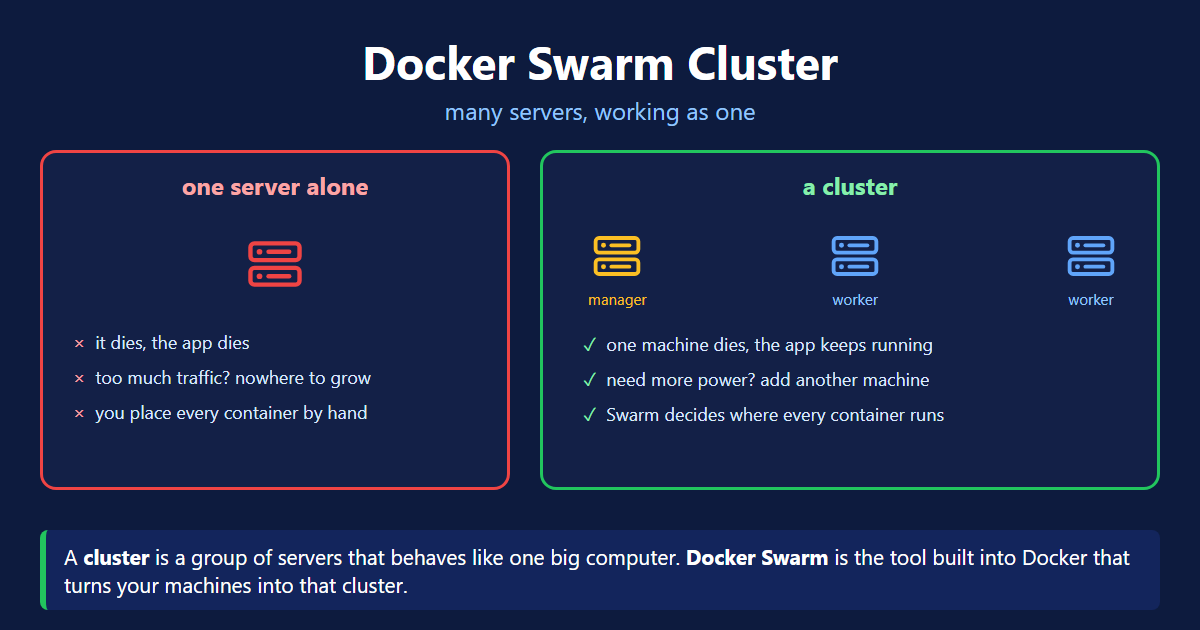
What Is a Cluster?
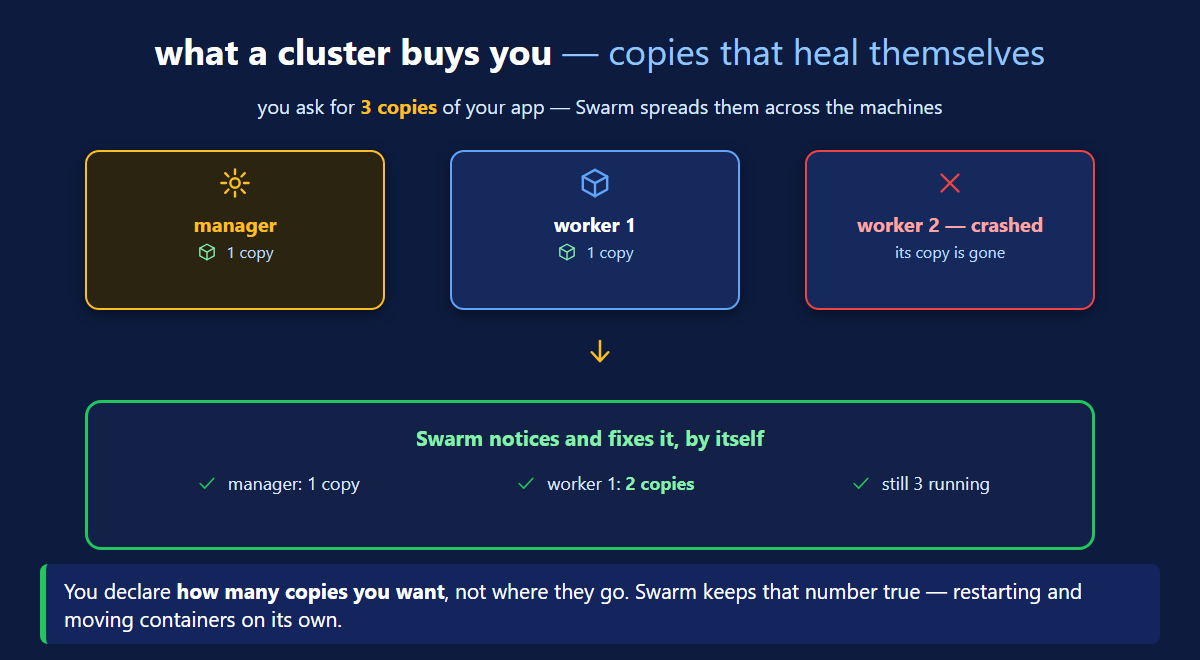
That shift — from naming the machine to declaring what you want — is the entire point. In Docker Compose you described an app and one machine ran it. A cluster takes the same idea and spreads it across many machines.
Manager Node and Worker Node
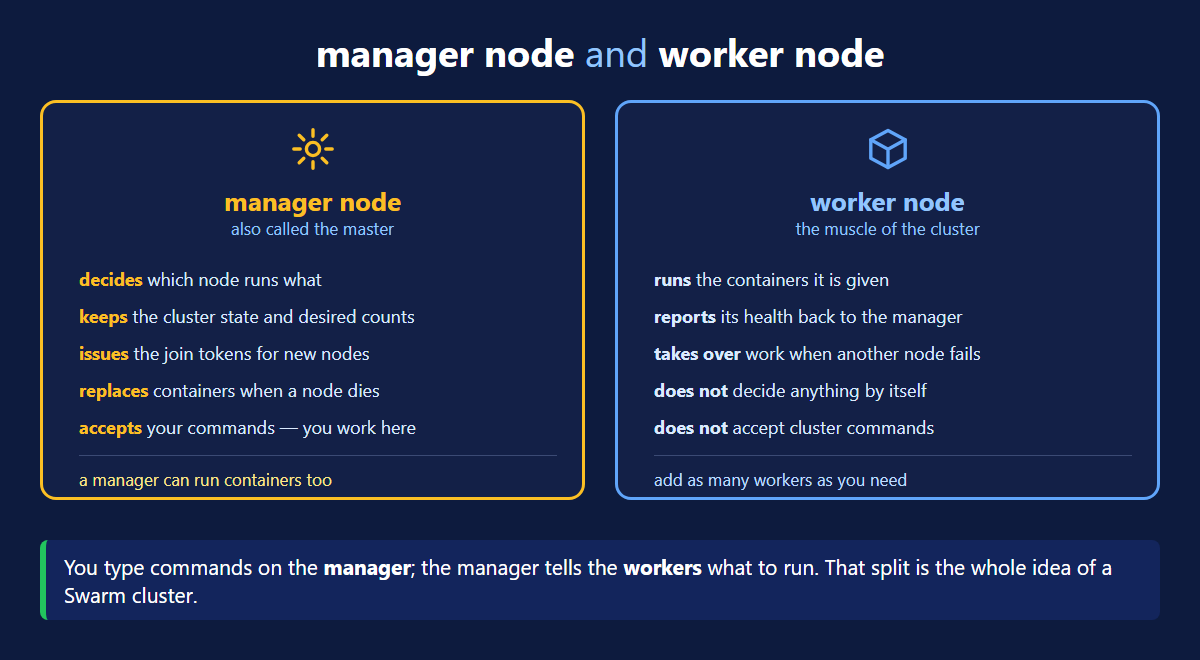
Memory hook: the manager is the foreman — it holds the plan and hands out jobs but can still swing a hammer. The workers do the jobs they're given and never argue. You only ever give orders to the foreman.
Why Use a Docker Swarm Cluster?
Step 1 — Three EC2 Machines and Two Security Groups
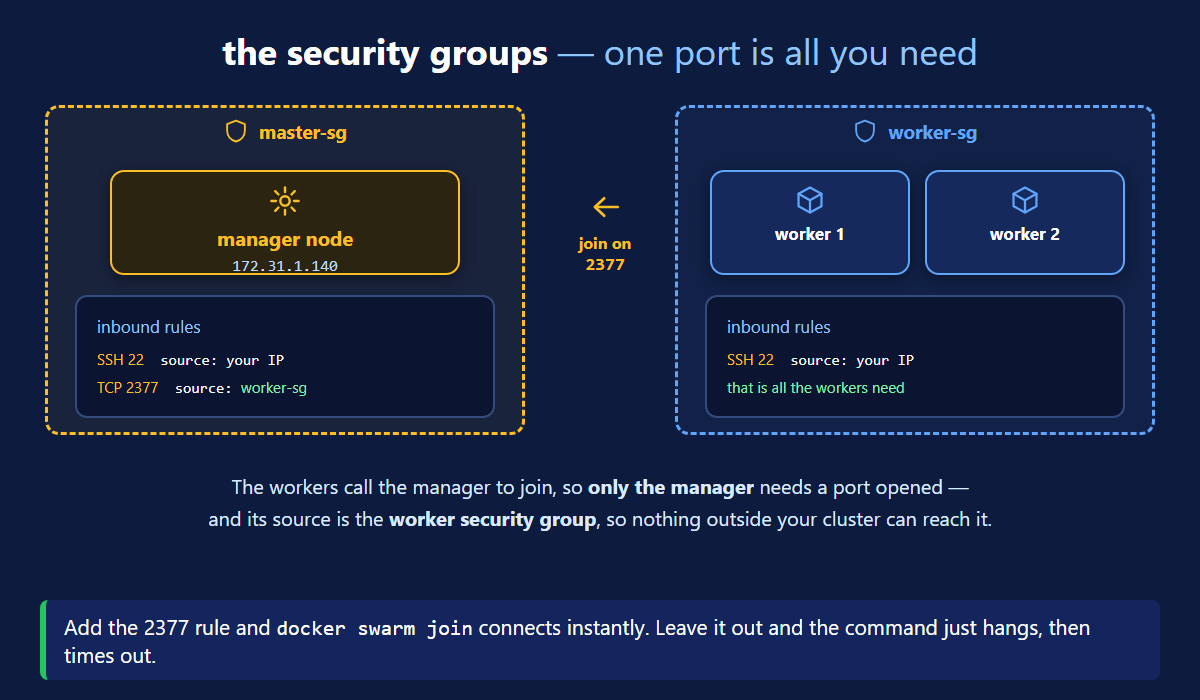
The security groups stay almost empty at this point — the Swarm rule comes later, once we know what to open:
Step 2 — Install Docker on All Three
Exactly the same 8 commands from the install lesson — just run them three times, once per machine:
Step 3 — Create the Cluster on the Manager
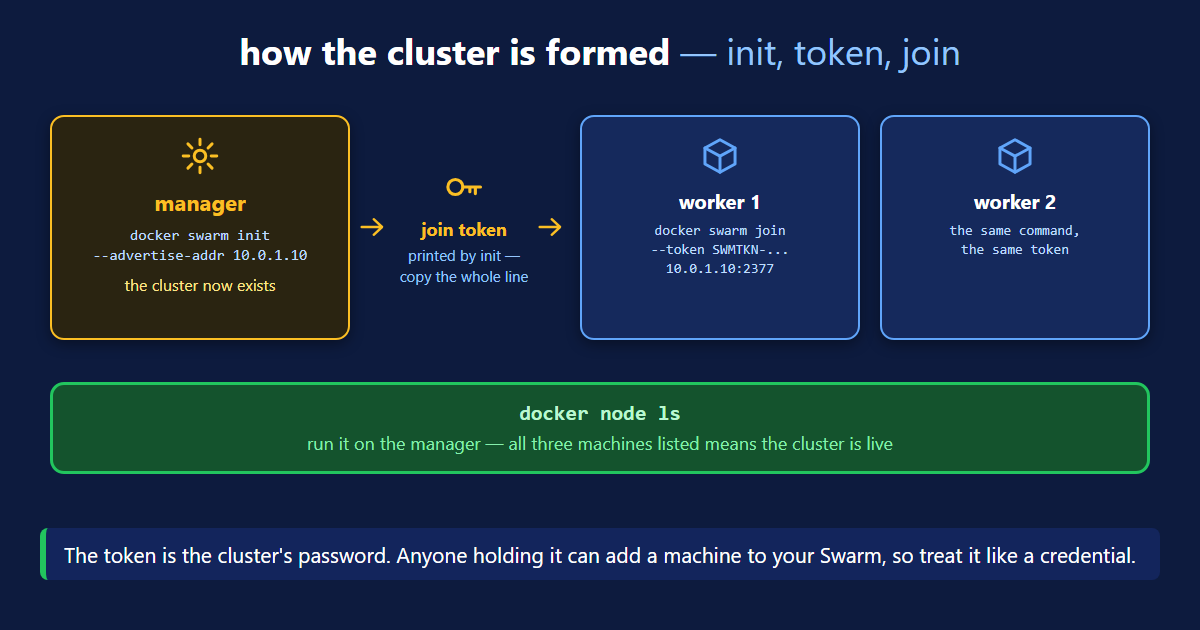
Which IP belongs in --advertise-addr is the question everyone gets wrong first:
Step 4 — Allow Port 2377 on the Manager
Look at the end of the join command the cluster just printed: 172.31.1.140:2377. That is the door the workers will knock on — and AWS has it shut.
Set the rule's Source to worker-sg, not an IP address. Then every machine in the worker group can join, no machine outside it can, and adding a third worker later needs no rule change at all.
Step 5 — Join the Workers
Step 6 — Verify the Cluster
Three nodes Ready and Active on the manager means the cluster is formed. Now give it something to run.
Step 7 — Run an App on the Cluster
This is where the cluster stops being theory. On a single machine you used docker run; on a cluster you use docker service — you describe what you want and the manager places it:
One copy is a start. The three commands below are the payoff of the whole lesson — scaling, updating without downtime, and removing, all from the manager:
docker service scale react-app=3 does not ask you which machines. You state the number you want; Swarm picks the nodes, starts the copies, and load-balances traffic across them. That declarative style is the real difference between a cluster and three separate servers.
The Docker Swarm Commands
Docker Swarm Quick Reference
| Rule | Value |
|---|---|
| Type | Custom TCP |
| Port | 2377 |
| Source | worker-sg (the workers' security group) |
| Added to | master-sg — the manager only |
| Task | Command | Run on |
|---|---|---|
| Create the cluster | docker swarm init --advertise-addr <private-ip> | manager |
| Show the join command again | docker swarm join-token worker | manager |
| Add a machine | docker swarm join --token <token> <ip>:2377 | the new node |
| List the cluster | docker node ls | manager |
| Deploy an app | docker service create --name <n> --replicas 1 <image> | manager |
| See which node runs each copy | docker service ps <n> | manager |
| Change the number of copies | docker service scale <n>=3 | manager |
| Update to a new image tag | docker service update --image <tag> <n> | manager |
| Remove the app | docker service rm <n> | manager |
| Remove a node | docker swarm leave | that node |
What's Next
You now have a real cluster: three machines, one inbound rule for port 2377 on the manager, a manager holding the cluster state and two workers taking orders — all verified with docker node ls — and an app deployed across it with docker service. The mental shift is the valuable part: you stopped placing containers on machines by hand and started declaring how many copies you want, leaving placement, failover and load balancing to Swarm. The official Swarm documentation (opens in a new tab) covers what comes next — overlay networks across nodes, secrets, and rolling updates — and the service create reference (opens in a new tab) lists every option for the services you deploy.
Continue to Docker Multi-Stage Builds →
Frequently Asked Questions
What is a cluster in Docker Swarm?
A cluster is a group of servers that behaves like one big computer. Instead of saying "run this container on server 2", you say "run three copies of this app" and the cluster decides which machines they land on. Docker Swarm is the clustering tool built into Docker itself, so there is nothing extra to install — you turn a set of machines into a cluster with docker swarm init on one of them and docker swarm join on the others. The benefit is that no single machine is critical any more: if one goes down, the work moves to the machines that are still healthy.
What is the difference between a manager node and a worker node?
The manager node (often called the master) is the brain: it holds the cluster's state, decides which node runs which container, hands out the join tokens, and recreates containers elsewhere when a node dies. It is also the only place cluster commands work — docker node ls on a worker is refused with "This node is not a swarm manager." A worker node is the muscle: it runs the containers the manager assigns, reports its health back, and makes no decisions of its own. A manager can run containers too, so in a three-machine cluster all three do useful work.
Which port must be open to form a Docker Swarm cluster on AWS?
One: TCP 2377 on the manager node. That is the port printed at the end of the join command (for example 172.31.1.140:2377), and it is the port each worker connects to when it runs docker swarm join. Add it as an inbound rule on the manager security group with the workers security group as the Source, so only your own worker machines can reach it. The workers themselves need nothing beyond SSH, because nothing calls them — they call the manager. If 2377 is not open, docker swarm join appears to hang and then times out, because AWS is silently dropping the packets.
Why does only the manager node need a port opened?
Because the traffic only flows one way when a cluster is formed: each worker runs docker swarm join and calls the manager on port 2377. Nothing calls the workers, so their security group can stay as it was — SSH only. That is why you add a single inbound rule, on the manager security group, for TCP 2377. Setting its Source to the worker security group rather than an IP address means every machine in that group is allowed in, nothing else on the internet is, and launching another worker into the same group later works immediately with no rule changes.
What does docker swarm init --advertise-addr do?
It creates the cluster and turns the machine you run it on into the first manager. The --advertise-addr value is the address other nodes should use to reach this manager, which on AWS should be the instance's private IPv4 address when all nodes are in the same VPC — that keeps traffic inside AWS's network and matches a security-group-as-source rule. After it runs, Docker prints a ready-made docker swarm join command containing the token and the manager's address; you copy that whole line and run it on each worker. If you lose it, docker swarm join-token worker prints it again.
What is the Docker Swarm join token and where do I get it?
The join token is the cluster's password — a long string beginning SWMTKN- that proves a machine is allowed to join. It is printed by docker swarm init as part of a complete join command, and you can print it again at any time on the manager with docker swarm join-token worker. The same worker token is used by every worker; it is not one token per machine. Treat it as a credential, because anyone who has it and can reach port 2377 can add their own machine to your cluster. Managers have a separate token shown by docker swarm join-token manager.
How do I run an application on a Docker Swarm cluster?
With docker service instead of docker run. docker run starts one container on the machine you type it on; docker service create --name react-app --replicas 1 your-image hands the job to the cluster, and the manager decides which node runs it and restarts it if that node fails. Check it with docker service ls, see which node each copy landed on with docker service ps react-app, and read output with docker service logs react-app. From there docker service scale react-app=3 changes the number of copies, docker service update --image your-image:1.0.1 react-app does a rolling update one copy at a time, and docker service rm react-app removes it everywhere. All of these run on the manager.
How do I check that my Docker Swarm cluster is working?
Run docker node ls on the manager. It lists every machine in the cluster with its STATUS and AVAILABILITY — three rows all showing Ready and Active means the cluster is live. The row with an asterisk is the machine you are typing on, and the manager shows Leader under MANAGER STATUS. Running the same command on a worker fails on purpose with "This node is not a swarm manager", which confirms the role split. The row with the manager also shows Leader, which means it is the node holding the cluster state.