Published: October 13, 2026 · 11 min read
Docker Compose Tutorial — Run 3 Containers With One File
Everything so far ran one container at a time. Real apps don't work like that: a to-do app is a website, an API and a database — three containers that must find each other, start in the right order, and survive a reboot. This Docker Compose tutorial takes that exact app from our class session on EC2: one docker-compose.yml describing all three services, the two real problems we hit on the way (docker compose not existing, and the disk filling up mid-pull), and the single command that brings the whole stack to life.
In this guide, you will:
- See why 4 fragile commands become one file and one command
- Read a real
docker-compose.ymlline by line —services,image,ports,volumes,networks - Understand the key idea: service names are the addresses your code connects to
- Fix "docker: unknown command: docker compose" — installing the plugin when
aptcan't find it - Master the commands:
up,up -d,ps,logs -f,restart,down
Why Docker Compose Exists
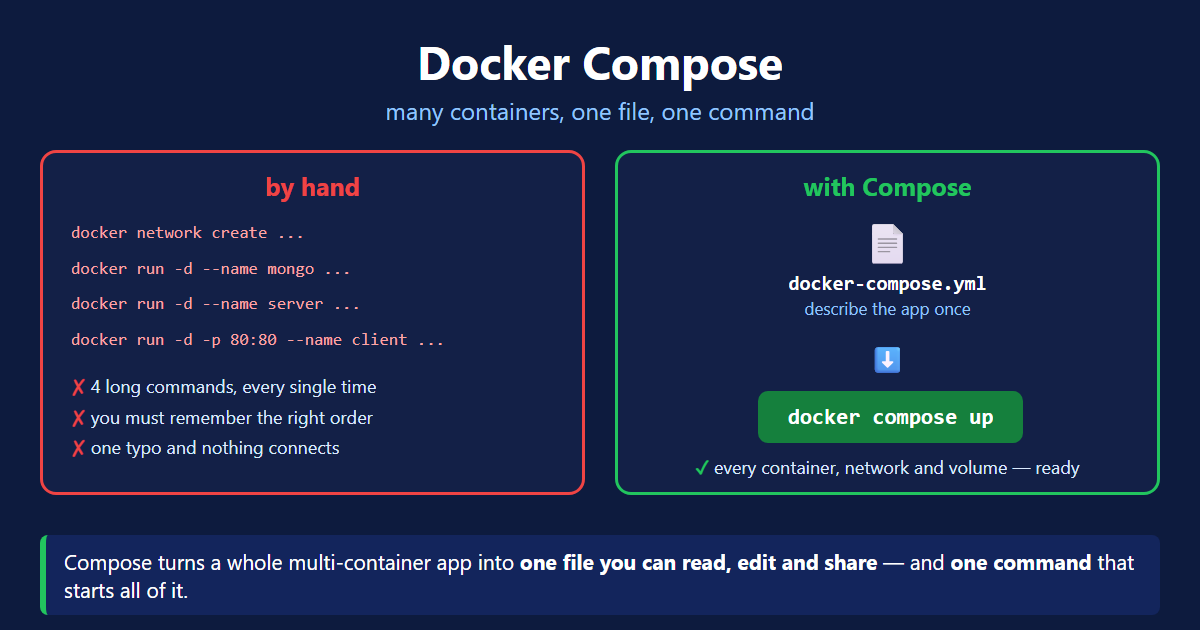
With what you already know from the networks and volumes lessons, you can run this app by hand. Here's what that costs:
Four commands that must be typed in the right order, with the right flags, every single time — and nobody else can tell what the app is made of without reading your shell history. Compose replaces all of it with a file you can read, edit, commit to git, and hand to anyone.
The docker-compose.yml File, Line by Line
Here's the real file from the class project — three services, one network, one bind mount:
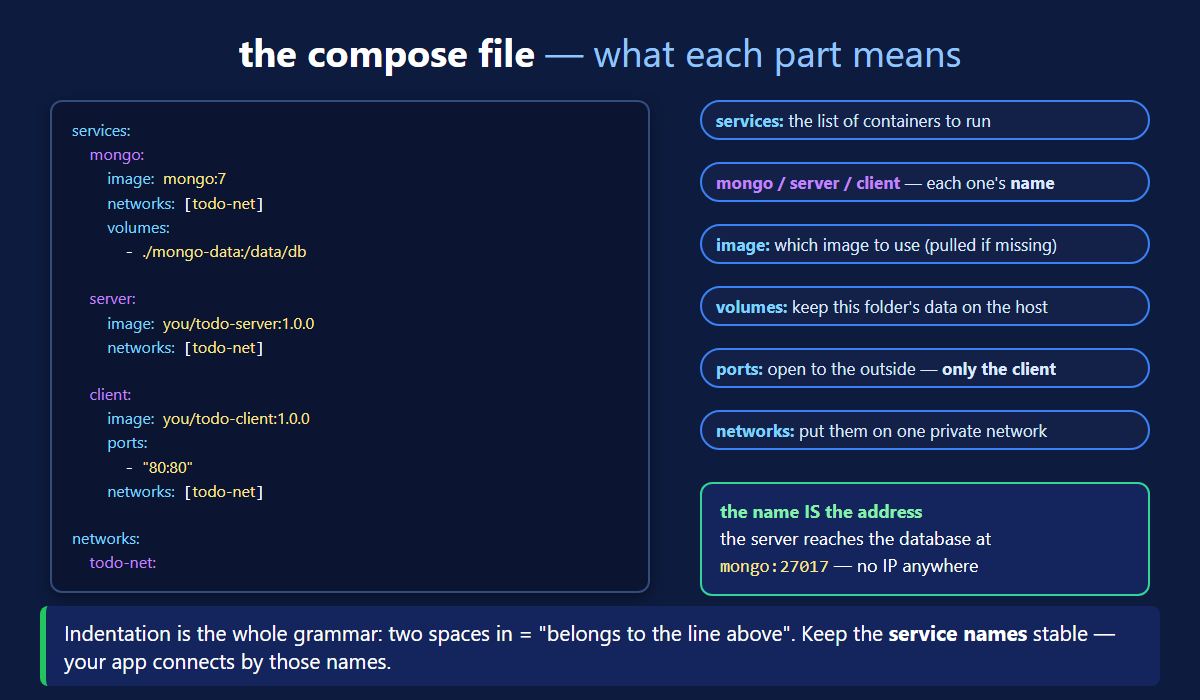
Read it top-down and every docker run flag you know has a home here: image: is the image name, ports: is -p, volumes: is -v, networks: is --network. The structure is just indentation — two spaces in means "belongs to the line above".
Notice that only client has ports. The API and the database get no port at all — they're reachable only from inside the network. That's the secure default: publish a port only for what genuinely must face the internet.
Service Names Are the Addresses
This is the idea that makes Compose click, and it builds directly on the custom bridge networks lesson:
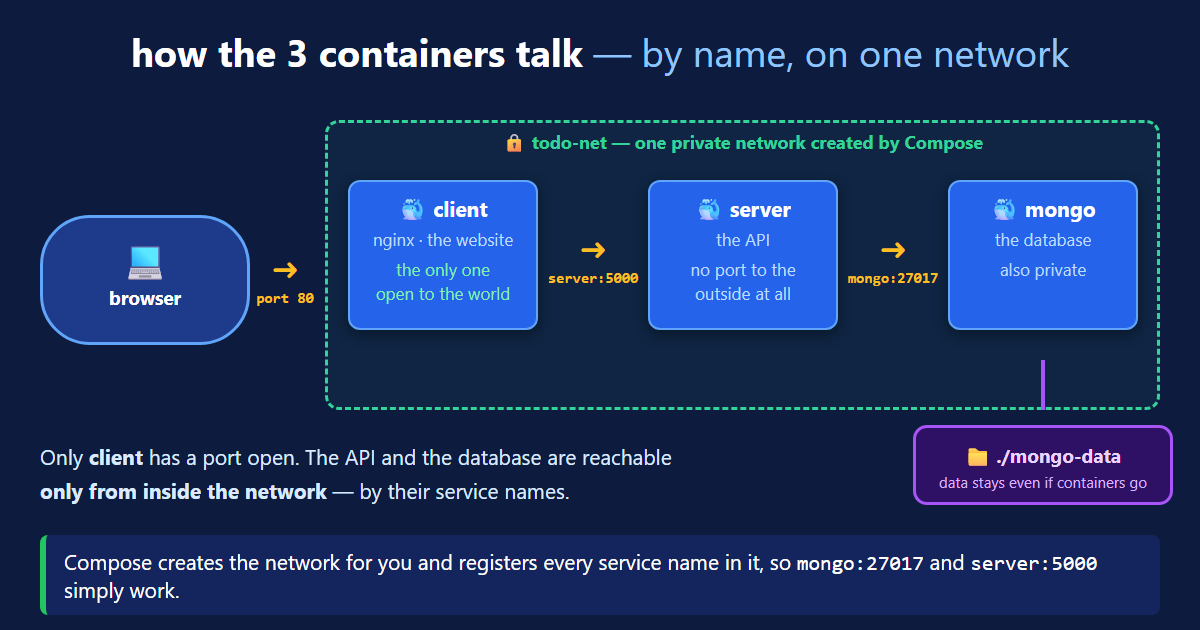
Compose creates the network and registers each service name on it. So the API's connection string is literally mongodb://mongo:27017 — the word mongo comes straight from the YAML. No IP addresses, which matters because container IPs change on every restart.
Step 1 — Get the Project
Step 2 — "docker compose" Doesn't Exist Yet
First real problem of the class. Docker is installed and working, but docker compose isn't a command:
Compose v2 ships as a CLI plugin, separate from Docker itself. When apt can't find the package, install the plugin file directly — this works on any Ubuntu:
Why /usr/local/lib/docker/cli-plugins? Docker scans that folder for extra sub-commands. Any executable named docker-compose in there becomes docker compose. That's also why chmod +x isn't optional — without it the file is there but can't run.
Step 3 — One Command Starts Everything
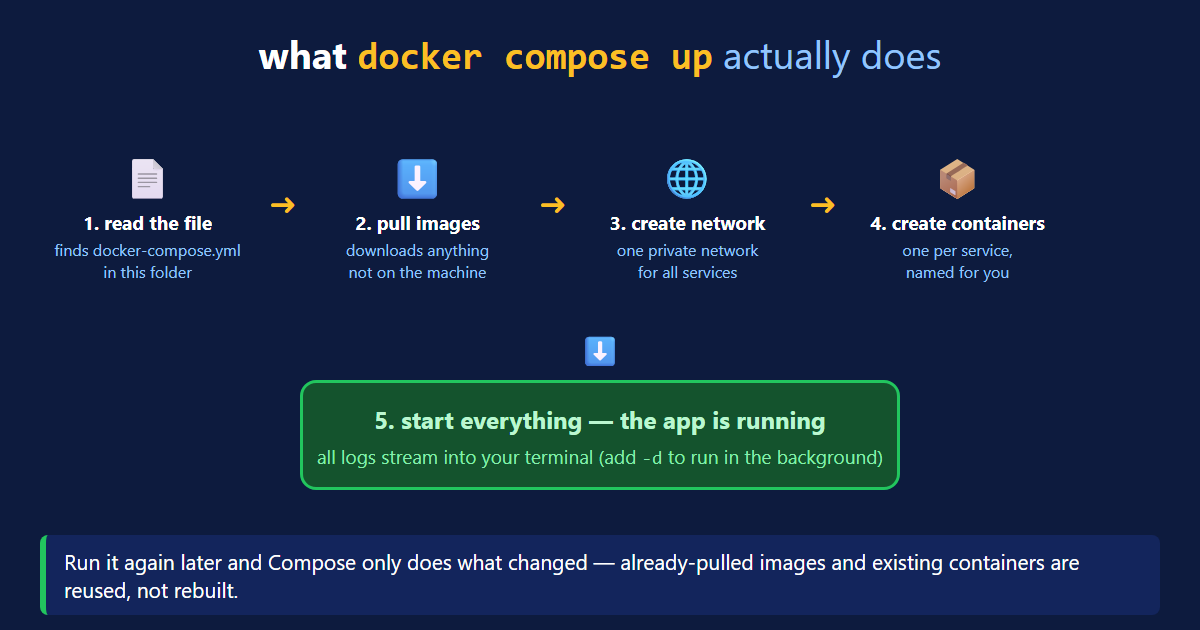
And the payoff, visible right in the logs — the services found each other by name, exactly as the YAML promised:
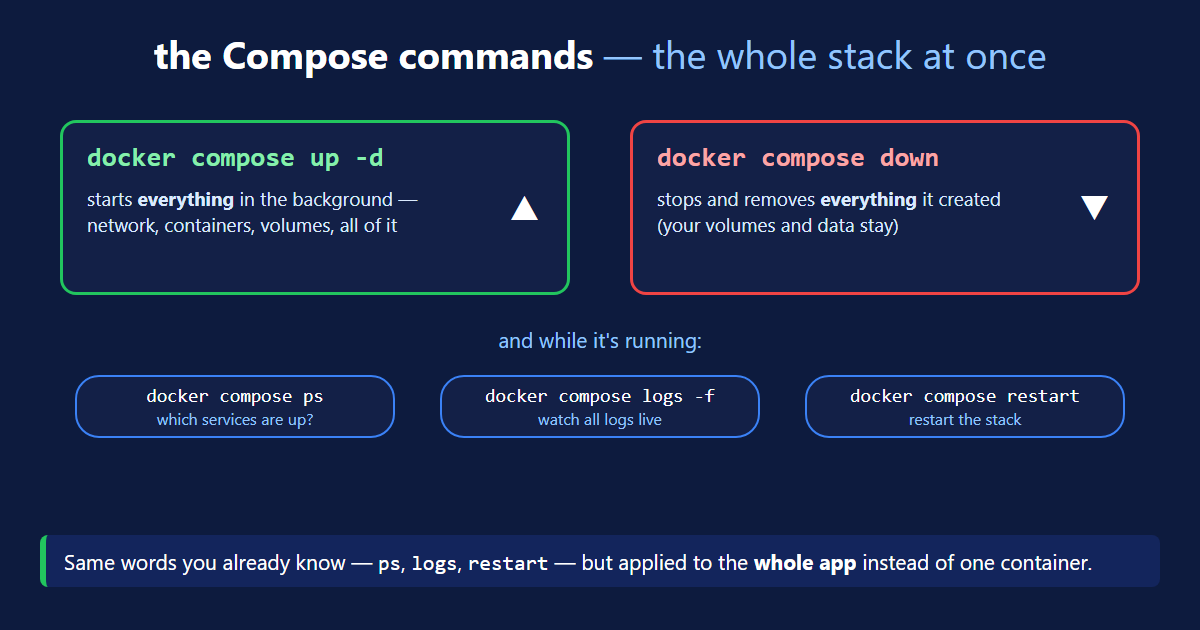
The Docker Compose Commands
Docker Compose Quick Reference
| In docker-compose.yml | Same thing in docker run |
|---|---|
image: mongo:7 | the image name at the end |
ports: - "80:80" | -p 80:80 |
volumes: - ./mongo-data:/data/db | -v ./mongo-data:/data/db |
networks: - todo-net | --network todo-net |
the service name (mongo) | --name mongo and its DNS address |
| Command | What it does |
|---|---|
docker compose up | start everything, logs attached to your terminal |
docker compose up -d | start everything in the background |
docker compose ps | which services are running |
docker compose logs -f | follow all logs (add a service name for one) |
docker compose restart | restart the stack |
docker compose down | stop and remove containers + network (data kept) |
docker compose down -v | ...and delete the volumes too — data gone |
What's Next
You can now describe a whole application in one file and start it anywhere with one command: services with their images, ports only where the outside world needs in, volumes for data that must survive, and networks that make mongo:27017 and server:5000 work without a single IP address. You also fixed the thing that actually blocks you on a fresh server — the missing Compose plugin. The official Compose documentation (opens in a new tab) covers the remaining keys (environment, depends_on, restart), and the Compose file reference (opens in a new tab) is worth bookmarking as your YAML grows.
Frequently Asked Questions
What is Docker Compose and why do I need it?
Docker Compose is a tool that describes a multi-container application in one YAML file and starts all of it with one command. Real apps are not a single container: a to-do app is a website, an API and a database, which by hand means creating a network and running three docker run commands in the right order with the right flags, every time, on every machine. With Compose you write docker-compose.yml once and run docker compose up — it pulls the images, creates the network, creates every container and starts them. The file is also documentation: anyone can read it and see exactly what the app is made of.
What is the difference between docker compose and docker-compose?
docker-compose with a hyphen is the old standalone Python tool (Compose v1), installed as its own program. docker compose with a space is Compose v2, a plugin built into the Docker CLI — it is the current version and the one you should use. They take the same docker-compose.yml file, so commands translate directly: docker-compose up becomes docker compose up. If docker compose says "unknown command", the plugin is simply not installed yet — Docker itself is fine.
How do I install Docker Compose on Ubuntu when apt cannot find the package?
On some Ubuntu releases sudo apt install docker-compose-plugin fails with "Unable to locate package", because that package only exists in Docker's own repository and not in Ubuntu's. The reliable fix is to drop the plugin binary into Docker's plugin folder yourself: sudo mkdir -p /usr/local/lib/docker/cli-plugins, then sudo curl -fSL https://github.com/docker/compose/releases/latest/download/docker-compose-linux-x86_64 -o /usr/local/lib/docker/cli-plugins/docker-compose, then sudo chmod +x on that file. The chmod is essential — without the execute permission the file exists but cannot run. Verify with docker compose version.
How do containers in Docker Compose talk to each other?
By service name. Compose creates a private network for the app and registers every service's name on it as a DNS name, so the API connects to the database at mongodb://mongo:27017 and the web server proxies to http://server:5000 — where mongo and server are exactly the service names written in docker-compose.yml. No IP addresses appear anywhere, which matters because container IPs change on every restart. The consequence is that renaming a service in the YAML breaks the app unless you change the connection strings too: in Compose, the names in the file are the addresses in your code.
Why does only one service need the ports setting in Docker Compose?
Because ports only controls access from the outside world. Services on the same Compose network already reach each other by name on any port, so the API and the database need no ports entry at all. In the to-do app only the client has ports: "80:80", which makes the website reachable from a browser; the API on 5000 and MongoDB on 27017 stay private inside the network, unreachable from the internet. That is good security by default — publish a port only for what genuinely has to face the public, and leave everything else internal.
What is the difference between docker compose up and docker compose down?
docker compose up reads docker-compose.yml and creates plus starts everything in it — pulling missing images, creating the network and creating one container per service. Without -d it stays attached and streams every service's logs into your terminal; with -d it runs detached in the background, which is what you want on a server. docker compose down is the mirror image: it stops and removes the containers and the network that up created. Your data survives a down because volumes are kept by default; docker compose down -v also deletes the volumes, which destroys the data.
How does Docker Compose name the containers it creates?
Compose names each container with a three-part pattern: the project name, the service name and a number — so the to-do-list folder running a service called server produces to-do-list-server-1. The project name comes from the folder the docker-compose.yml sits in, which is why two different projects can both have a service named server without clashing. The number at the end exists because a service can be scaled to several copies. You will see these names in docker ps, while Compose's own commands let you use the short service name instead: docker compose logs -f server.