Published: October 25, 2026 · 7 min read
Kubernetes Namespace Explained — Isolate, Create and Delete
In the last class we gave a Pod a stable address with a Service.
Now there are Pods, Services and config files everywhere. All of them sitting together in one place.
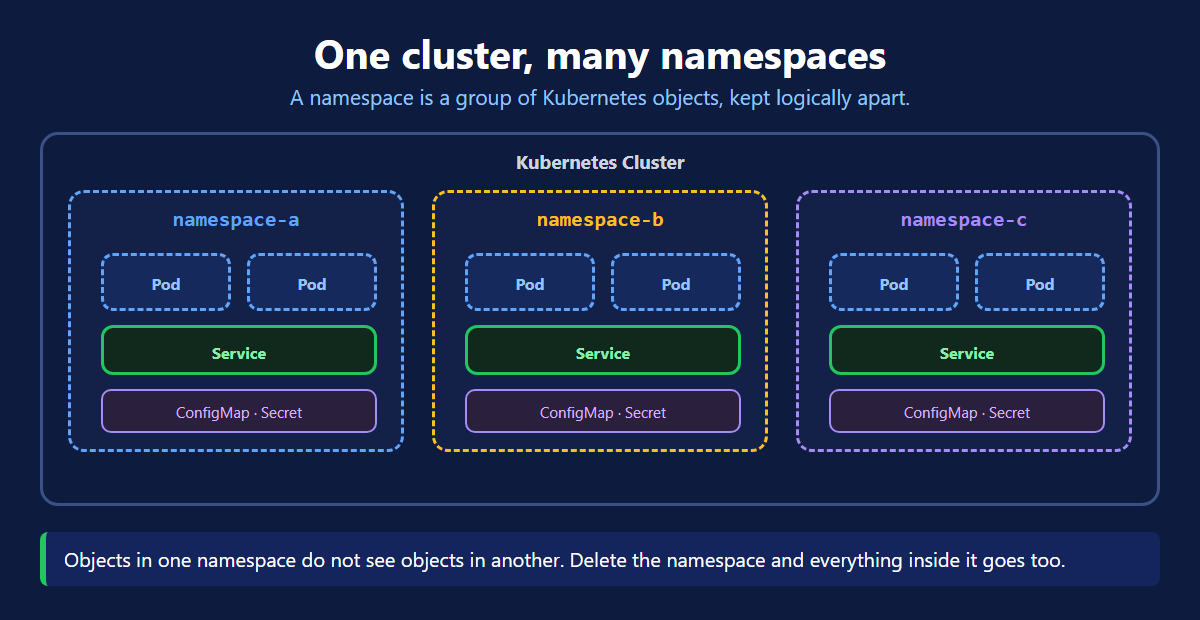
A namespace is how you put them into groups.
Here is the whole class in short:
- A namespace is a group of Kubernetes objects, kept logically apart.
- One cluster can hold many namespaces.
- Objects in one namespace do not see objects in another.
- The same name can be used in two different namespaces.
- Delete a namespace and everything inside it is deleted too.
- Anything not given a namespace goes into
default. - Add
-n <namespace>to akubectlcommand to look inside one.
The Problem
One cluster. Everything thrown into it.
- Your dev Pods and your prod Pods sit side by side.
- Two teams both want a Service called
app-svc. Only one can have it. kubectl get podsprints a list so long you cannot read it.- You want to clean up a test setup, so you delete objects one by one.
Nothing here is broken. It is just a mess. And a mess is where mistakes come from.
What a Namespace Is
A namespace is a group inside the cluster. You put objects into it.
Pods, Services, Deployments, ConfigMaps and Secrets all live inside a namespace.
The grouping is logical, not physical. All namespaces still share the same nodes and the same control plane. Kubernetes just keeps the lists apart.
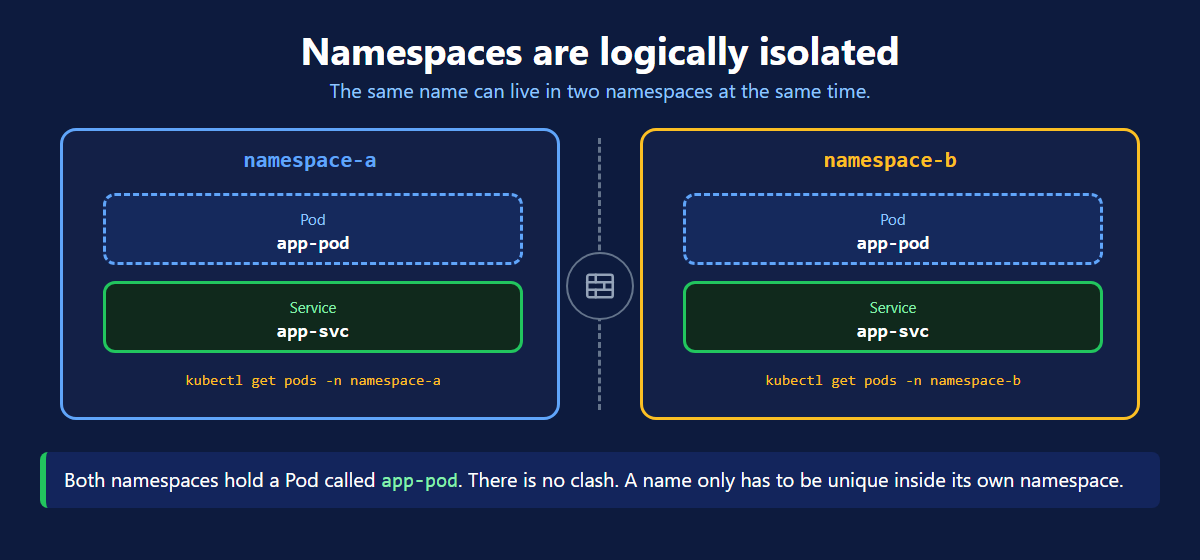
This is why the same name can appear twice. A name only has to be unique inside its own namespace.
Teams usually create one namespace per team, or one per environment: dev, qa and prod. Same cluster, separate groups.
The Namespaces You Already Have
A brand new cluster already has four.
| Namespace | What it holds |
|---|---|
default | anything you create without naming a namespace |
kube-system | the cluster's own parts, such as kube-proxy and CoreDNS |
kube-public | readable by everyone, rarely used by you |
kube-node-lease | heartbeat records the nodes use to report they are alive |
Never delete kube-system. That namespace is the cluster itself.
Create a Namespace
There are two ways. Same result.
The quick way
One command, done. Good for a quick test.
The YAML way
Use the file for anything real. You can commit it to git, and you can apply the exact same namespace on another cluster tomorrow.
Put a Pod Inside a Namespace
One extra line in the Pod manifest. That is the whole change.
How Do You Reach It?
This is where people get stuck the first time.
kubectl get pods found nothing. The Pod is fine. You were looking in the wrong place.
Every kubectl command looks in the default namespace unless you tell it otherwise. Add -n and the namespace name.
The same flag works everywhere: describe, logs, exec, delete.
Tired of typing -n hotel on every command? Change the default for your current context and drop the flag.
Reaching a Service in Another Namespace
A Service also belongs to a namespace.
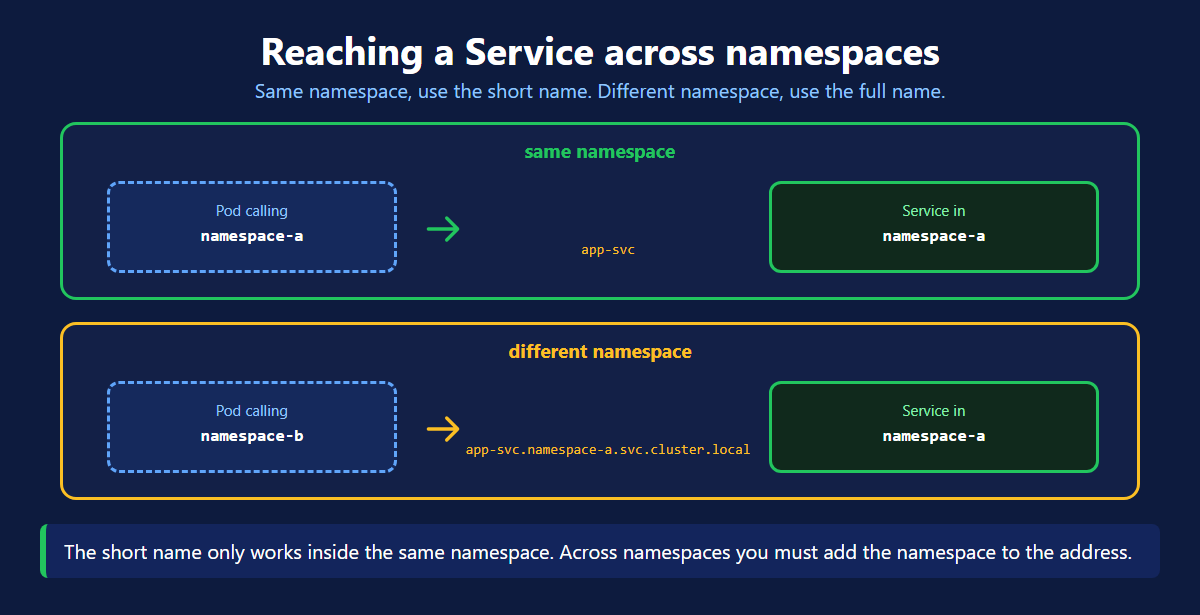
Two cases, two addresses:
- Same namespace — use the short name.
http://hotel-app-svc - Different namespace — use the full name.
http://hotel-app-svc.hotel.svc.cluster.local
The full name is just four parts joined by dots: the Service, the namespace, then svc.cluster.local.
Delete a Namespace
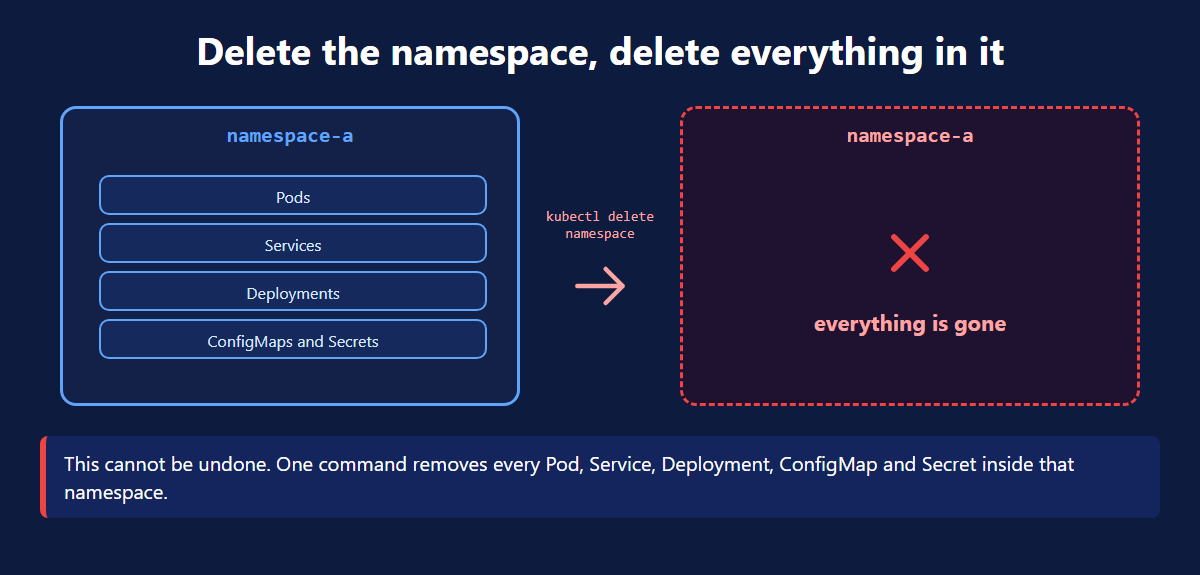
One command removed the namespace and everything inside it. No need to delete the Pods and Services first.
This cannot be undone. There is no confirmation and no recycle bin. Check the namespace name twice before you press enter.
That is also what makes it useful. A test environment that took twenty objects to build is gone in one line.
What a Namespace Does Not Do
The isolation is logical. It is not a wall.
- A Pod in one namespace can still reach a Pod in another, using the full DNS name.
- A namespace does not limit CPU or memory by itself.
- A namespace does not decide who is allowed to do what.
You get those by adding other objects on top:
| You want | Add this |
|---|---|
| control who can act in a namespace | RBAC Role and RoleBinding |
| control which Pods may talk to each other | NetworkPolicy |
| cap the CPU and memory a namespace can use | ResourceQuota |
Do not treat a namespace as a security boundary on its own. It groups objects. It does not guard them.
Kubernetes Namespace Quick Reference
| Command | What it does |
|---|---|
kubectl get ns | list every namespace |
kubectl describe ns <name> | details, quotas and limits |
kubectl create namespace <name> | create one quickly |
kubectl apply -f namespace.yaml | create one from a file |
kubectl get pods -n <name> | Pods inside one namespace |
kubectl get all -n <name> | everything inside one namespace |
kubectl get pods --all-namespaces | Pods across the whole cluster |
kubectl config set-context --current --namespace=<name> | stop typing -n |
kubectl delete namespace <name> | delete it and everything in it |
What's Next
A namespace is the simplest tool Kubernetes gives you for keeping a cluster tidy. One cluster, many groups, one flag to switch between them. The official Namespaces documentation (opens in a new tab) and the ResourceQuota page (opens in a new tab) go deeper on limits and quotas.
Frequently Asked Questions
What is a namespace in Kubernetes?
A namespace is a group of Kubernetes objects inside one cluster, kept logically apart from the other groups. Pods, Services, Deployments, ConfigMaps and Secrets all live inside a namespace. One cluster can hold many namespaces. Objects in one namespace do not see objects in another. Two teams can share one cluster without stepping on each other.
Can I create multiple namespaces in one Kubernetes cluster?
Yes. One cluster can hold as many namespaces as you want, and that is the normal way to use them. Teams usually create one namespace per team, or one per environment such as dev, qa and prod. All of them share the same nodes and the same control plane. Only the grouping is separate.
How do I list all namespaces in Kubernetes?
Run kubectl get namespaces, or the short form kubectl get ns. A fresh cluster already has four: default, kube-system, kube-public and kube-node-lease. To look at one namespace in detail, run kubectl describe namespace followed by the name. That also shows any resource quota and limit range set on it.
How do I create a Kubernetes namespace?
There are two ways. The quick way is kubectl create namespace followed by a name. The repeatable way is a YAML file with apiVersion v1, kind Namespace, and the name under metadata. Apply it with kubectl apply -f namespace.yaml. Use the YAML file for anything real, because it can be committed to git and applied again on another cluster.
How do I create a pod inside a namespace and access it?
Add a namespace line under metadata in your pod YAML, then apply it as usual. The pod will not show up in kubectl get pods, because that command looks in the default namespace. Add -n and the namespace name instead: kubectl get pods -n hotel. The same flag works for describe, logs, exec and delete. To stop typing it every time, run kubectl config set-context --current --namespace=hotel.
How does a pod reach a Service in another namespace?
Inside the same namespace a pod can use the short Service name, such as http://hotel-app-svc. From a different namespace that short name does not resolve. Use the full DNS name instead: the Service name, a dot, the namespace, then svc.cluster.local. For example http://hotel-app-svc.hotel.svc.cluster.local. The traffic still works, you just have to be explicit about where the Service lives.
What happens when you delete a Kubernetes namespace?
Everything inside it is deleted with it. Pods, Services, Deployments, ConfigMaps and Secrets in that namespace are all removed by the single command kubectl delete namespace. You do not need to delete them one by one, and you cannot undo it. That makes it the fastest way to clean up a test environment. It is also the fastest way to lose one by mistake.
Do namespaces provide security isolation?
Not on their own. The isolation is logical, not a firewall. By default a pod in one namespace can still reach a pod in another. It only needs the full DNS name. To make a namespace a real security boundary you add other objects on top. RBAC controls who can act in a namespace. NetworkPolicy controls which pods may talk. ResourceQuota caps the CPU and memory a namespace can take.